
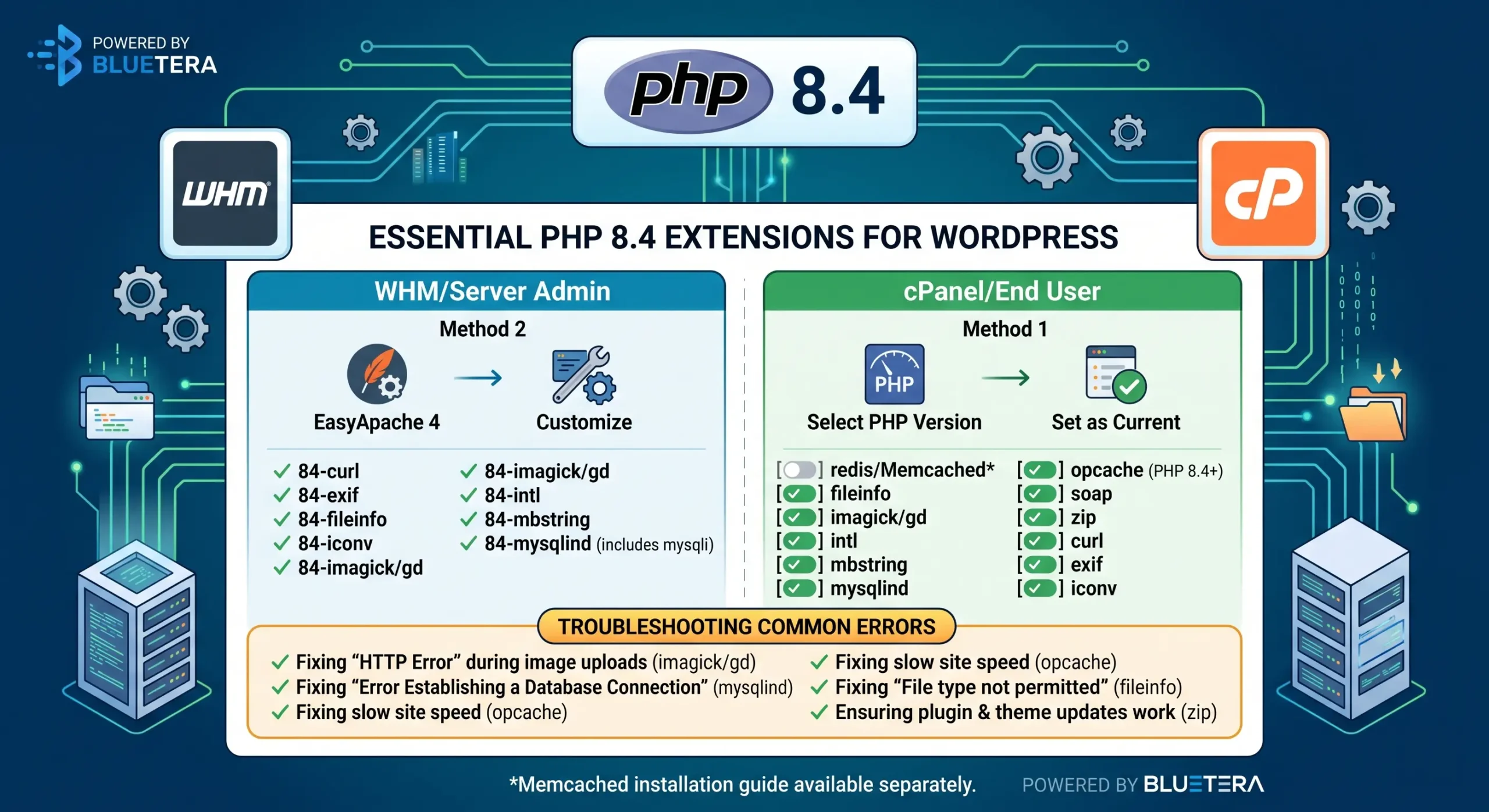
Essential PHP 8.4 Configuration for WordPress: Extensions and Setup Guide
Upgrading to PHP 8.4 offers significant performance improvements and security patches. However, simply switching the version is often not enough. Many server configurations default to a “bare-bones” PHP installation, leaving out critical extensions that power WordPress.
If you are seeing these errors, it often indicates a missing or disabled PHP 8.4 extension.
Symptom / Error Message | Missing Extension |
|---|---|
“Error Establishing a Database Connection” or database crashes. | mysqli / mysqlind |
“HTTP Error” when uploading images or thumbnails not generating. | imagick or gd |
“Sorry, this file type is not permitted for security reasons” on valid files. | fileinfo |
“The update cannot be installed because we will be unable to copy some files.” | zip |
“An unexpected error occurred” when checking for WordPress updates. | curl |
Site is extremely slow or has high CPU usage despite low traffic. | opcache |
Fatal errors referencing “mb_convert_encoding” or “multibyte strings.” | mbstring |
Broken connections to shipping carriers (UPS/FedEx) or legacy APIs. | soap |
Incorrect image rotation or missing metadata in the Media Library. | exif |
Required PHP 8.4 Extensions List
When moving to PHP 8.4, ensure the following are enabled. Note that in PHP 8.4, mysqli is typically bundled with mysqlind, so you may only see one toggle for both.
curl: Essential for API communication and updates.
exif & fileinfo: Crucial for secure and accurate media handling.
imagick or gd: Required for image manipulation and resizing.
intl: Handles internationalization and localized formatting.
mbstring: Critical for plugin compatibility and non-English text.
mysqli & mysqlind: The drivers that allow WordPress to talk to your database.
opcache: Dramatically speeds up PHP execution. (Built into the core in PHP 8.5, but requires a manual toggle in 8.4).
soap: Used for enterprise-level web service integrations.
zip: Allows WordPress to unpack plugin and theme updates.
redis or Memcached: High-performance object caching.
Method 1: Enabling Extensions via cPanel (End-User)
If you have a shared hosting account or do not have root server access (WHM:
Log in to cPanel.
Navigate to the Software section and click Select PHP Version.
Ensure the Current PHP Version is set to 8.4.
Review the Extensions tab and check the boxes for all items listed in the table above.
Changes are usually saved automatically, but look for a “Save” or “Apply” button if present.
Note that some web hosts disable the option for users with basic web hosting plans to manage these options. If you cannot find or edit these settings, you may have to contact your web host and ask them to enable what you are missing.
Method 2: Configuring PHP 8.4 via WHM (Administrator)
When you enable PHP 8.4 in WHM, the system does not enable all required WordPress extensions by default. You must activate them manually through EasyApache 4.
Log in to WHM.
Search for EasyApache 4 in the sidebar.
Click Customize next to your “Currently Installed Packages.”
In the PHP Extensions tab, search for “84” to filter for PHP 8.4 modules.
Toggle the switch to Install for each required extension (e.g.,
php84-php-imagick).Go to the Review tab and click Provision to apply the changes.
Technical Note: Bundled mysqli
Users often get confused looking for a separate “mysqli” toggle in PHP 8.4. In many modern server environments, mysqli is now integrated into the mysqlind (MySQL Native Driver) package. If you enable php84-php-mysqlind, your database connection should function perfectly.
Struggling with PHP Configuration? Let Bluetera Handle It.
Managing server-level updates and PHP extensions can be time-consuming and technically overwhelming. If you’re still seeing errors after following these steps—or if you simply want the peace of mind that your websites are always optimized and secure—we’re here to help.
From server migrations to performance tuning and expert WordPress management, Bluetera specializes in keeping your digital assets running at peak performance.
Contact Bluetera Today for Expert Technical Support – 1 (336) 500-7707